
Quick tour (60 seconds)#
Audience: first-time users (wet lab + computational)
Time: 1–3 minutes
What you’ll do: enter → move → color → keep a snapshot → highlight → export/save
Tip
If you prefer to learn by definition-first, read a_orientation/04_ui_glossary_terminology before this tour.
What appears on ordinary startup#
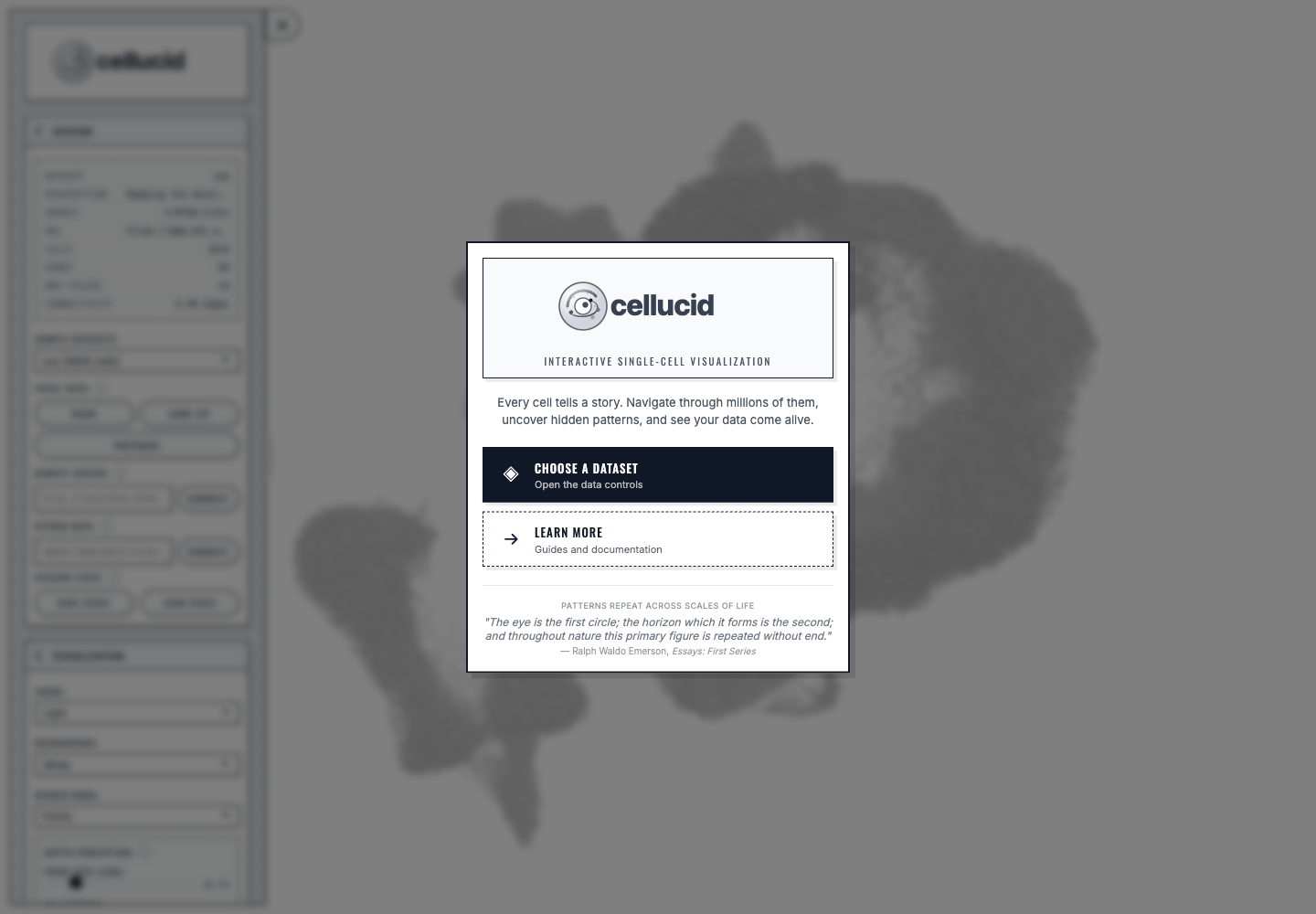
Every ordinary bundled or catalog startup opens the welcome overlay. The Suo dataset remains the sample catalog default and can finish loading behind it; dismissing the overlay is not remembered for the next ordinary load. An explicit Jupyter, remote-server, or GitHub-served startup skips the overlay because its data source has already been selected.#
Choose Choose a dataset to open the data controls, or press Escape to inspect the loaded default dataset first.
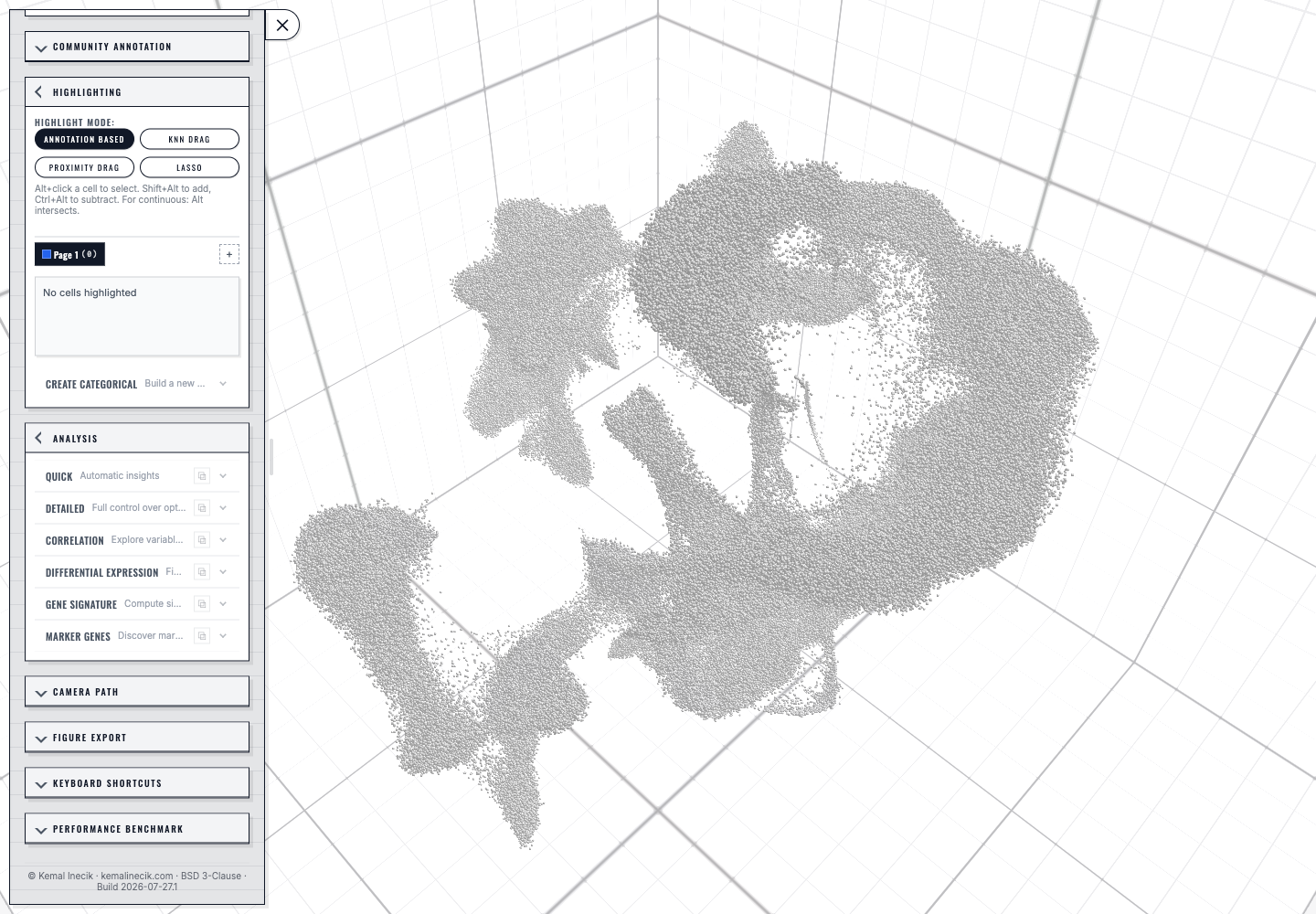
The fresh loaded state uses the light grid background. Community Annotation and Camera Path start collapsed, and the footer reports the exact web build identity; this capture is Build 2026-07-27.1.#
One screenshot “map” (recommended)#
This tour references UI areas by name (the app labels). A single annotated screenshot makes the rest of the docs much easier to follow.
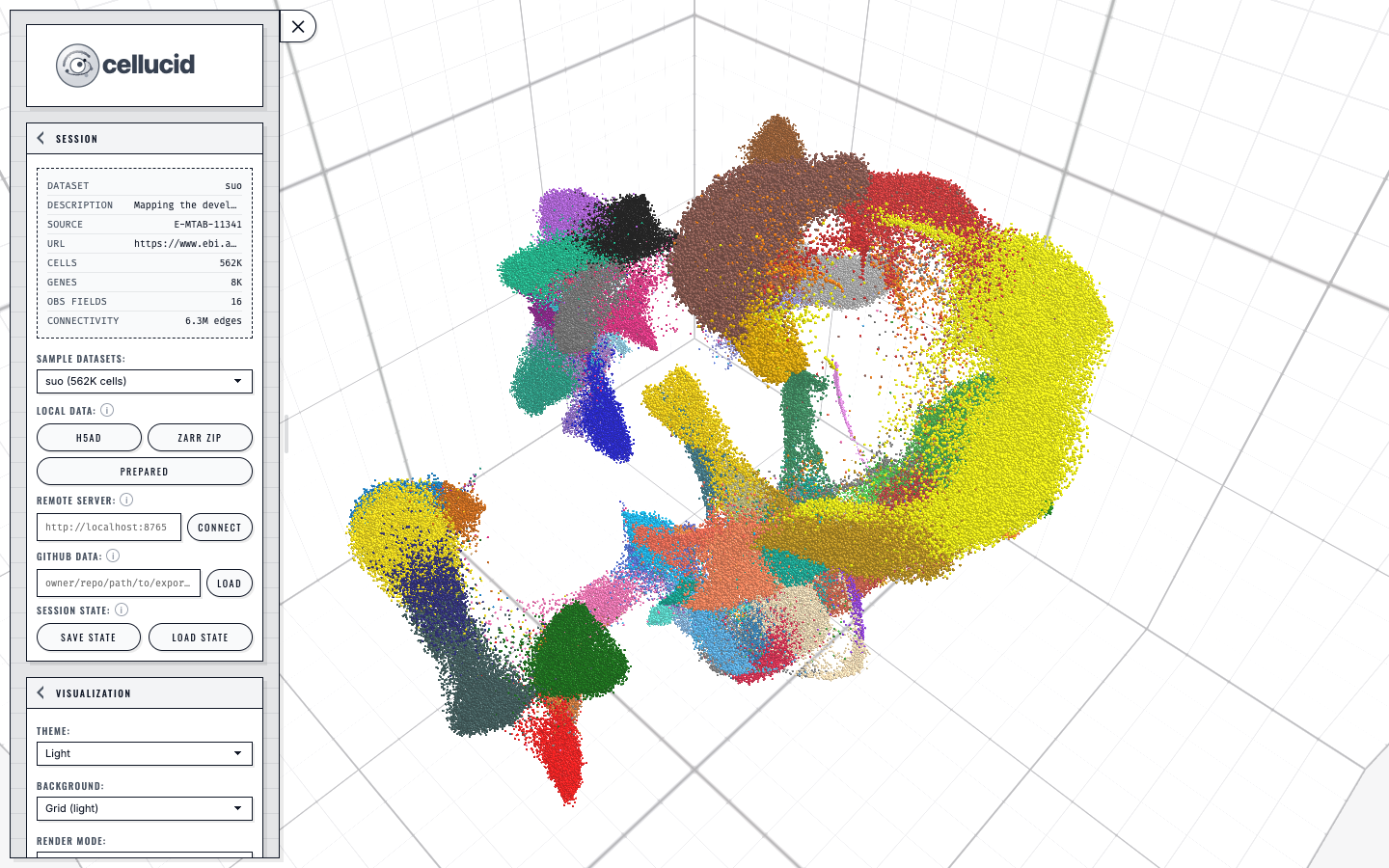
A loaded dataset in Cellucid: the sidebar controls the active view while the categorical legend maps directly to the colored points.#
Fast path (click-by-click)#
1) Confirm or replace the default dataset#
After dismissing the welcome overlay, inspect the Session accordion.
Keep the loaded Suo sample, or choose another entry under Sample datasets. Pancreatic endocrinogenesis (scVelo) is the standard 1D/2D/3D velocity example; see Standard Pancreas sample dataset.
Wait for the dataset info panel to populate (Cells/Genes/Obs fields).
What success looks like
The canvas shows points on the default light grid.
The dataset info panel shows non‑zero counts.
Note
You can also load your own data from Local data (Prepared, H5AD, or Zarr
ZIP) or from a Remote server, but those workflows are documented in
b_data_loading/index.
2) Move the camera#
Open Compare Views → Navigation.
Check the dimension-specific default:
1D or 2D starts in Planar;
3D starts in Orbit.
In Planar, drag to pan and use the wheel or trackpad to zoom.
In Orbit, drag to rotate, use the wheel or trackpad to zoom, and right-drag (or Shift-drag) to pan.
The app does not start camera motion by default. Camera Path starts collapsed, its top transport is absent until at least two keyframes exist, and playback begins when you select Play. If you explicitly enable Autoplay, a ready path starts immediately and starts again when that setting is restored from a session.
3) Color by a field (metadata or gene expression)#
Open Coloring & Filtering.
Pick one:
Categorical obs (clusters, batch, sample), or
Continuous obs (QC metrics, scores).
Look for the legend changing on the left.
What success looks like
The points change color.
A legend appears/updates (categories or a color scale).
4) Keep a snapshot (small multiple)#
Open Compare Views → Multiview.
Click Keep view.
You should see a new numbered badge/panel.
This is how you compare hypotheses side‑by‑side without losing your current view.
5) Make a highlight (selection)#
Open Highlighting.
Choose a mode (e.g., Lasso).
Draw a selection; a highlight group should appear in the highlight list.
If you want a keyboard-first workflow, the UI supports:
Alt+ drag for area selection (and other shortcuts; see the in‑app “Keyboard Shortcuts” accordion).
6) Export or save what you did#
Pick one:
Save State (Session accordion) to download a
.cellucid-sessionbundle you can reopen later.Figure Export to export a publication‑ready figure of the current view(s).
For a bug report, scroll to the sidebar footer and include its exact Build value. It identifies the web files you exercised and is separate from the Python package version.
Troubleshooting (quick tour blockers)#
“The canvas is blank” / “WebGL2 required”#
Go to a_orientation/02_system_requirements.
“I can’t rotate/zoom/pan”#
Go to c_core_interactions/06_troubleshooting_core_interactions (focus, pointer lock, nav mode confusion).
“Keep view does nothing”#
You are likely in smoke mode (multiview is points‑only). See c_core_interactions/04_view_layout_live_snapshots_small_multiples.
Next steps#
Learn navigation + multiview properly:
c_core_interactions/indexLearn the language of the UI:
a_orientation/04_ui_glossary_terminology