
Community Annotation — UI Reference + Troubleshooting#
This page is a button-by-button reference for the Community Annotation UI, plus a deep troubleshooting catalog for both annotators and authors.
If you want the guided flow first:
Annotators:
01_annotator_guideAuthors:
02_author_guide
Community Annotation Accordion (Sidebar)#
You’ll find Community Annotation in the left sidebar. The accordion starts collapsed.
Entry button states#
Before a repository is connected, the compact panel reads
No annotation repo connected. and exposes one action:
Connect repo: opens the four-step connection wizard.
After a repository is connected, the GitHub sync action reflects authentication state:
Connect GitHub…: the repository connection exists locally, but the tab is not signed in.
GitHub sync…: the tab is signed in and the repository is connected.
When offline, GitHub actions are disabled. Existing annotation local state can still be edited, but it cannot be Pulled or Published.
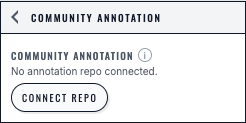
The Community Annotation entry point reports that no repository is connected and offers the explicit Connect repo action.#
Status panel fields (what to read when debugging)#
Depending on your state, the panel can show:
Dataset: the current dataset id (this must match
annotations/config.json).GitHub: whether you’re connected, and your GitHub login.
Repo: the connected repo (optionally including
@branch).Copy share link (icon action): copies a link with
?annotations=owner/repo@branchprefilled.
If you are reporting a problem, a screenshot of this status panel often contains the information needed to debug (dataset id + repo/branch + login).
“GitHub sync” Modal (Repo Discovery + Pull/Publish)#
Open it from the Community Annotation accordion.
This modal is a 4-step wizard:
1) Sign in with GitHub#
Button: Continue with GitHub
Notes:
This uses a GitHub App OAuth flow (no token paste).
Tokens are stored only in
sessionStorage(closing the tab signs you out).
2) Install the GitHub App#
Buttons:
Add repo (opens GitHub App installation flow)
Reload (refresh repo list after installing)
If your annotation repo does not appear later, this step is the usual cause.
3) Select an annotation repository#
Filter input: Filter repositories…
Repos are shown as cards (public/private).
Select a repo card, then use the wizard navigation button Connect.
If replacing an existing repository, the same button reads Switch repo.
What “connect” means:
the repo choice is saved locally per dataset and per GitHub account
Cellucid validates required paths:
annotations/config.jsonannotations/schema.jsonannotations/users/
4) Sync (Pull / Publish)#
Buttons:
Pull latest
Publish
Optional:
Auto pull toggle
interval selector (10/15/60 minutes)
Navigation:
Back / Next buttons navigate the wizard.
A status line at the bottom shows progress, warnings, and error text.
What Pull does (technical)#
Pull:
lists
annotations/users/*.jsonand downloads only files whose GitHubshachanged since your last Pulldownloads optional
annotations/moderation/merges.json(authors only; if present)caches raw files locally (IndexedDB if available; otherwise memory-only)
compiles the merged view in the browser
applies author settings from
annotations/config.json(annotatable columns, thresholds, closed fields)
What Publish does (technical)#
Publish always writes your user file:
annotations/users/ghid_<id>.json
If you are an author, Publish may also update:
annotations/config.jsonannotations/moderation/merges.json
Publishing modes:
Direct push if GitHub reports you can push.
Fork + Pull Request if you cannot push but the repo allows forking.
Cellucid chooses one route from current permissions before publishing. If that route fails, the failure is reported; a different route is not substituted.
Common publish pitfalls:
branch protection blocks direct pushes,
forking disabled blocks PR flow,
fork exists but is not accessible to the app token (install the app on your personal account).
Profile (Optional) and “Your identity” Modal#
In the Community Annotation accordion, you will see Profile (optional).
Buttons:
Edit: opens the “Your identity” modal
Clear: clears local profile fields (you still need to Publish to update GitHub)
The “Your identity” modal includes:
Display name: free text (e.g. “Alice Smith”)
Affiliation / role: free text (e.g. “Theis Lab, Postdoc”)
LinkedIn: handle only (no URL; lowercase
a-z0-9-)ORCID: accepts an ORCID iD or a name; auto-suggests when possible
Save / Cancel
Notes:
These fields are optional and are written to your GitHub user file only on Publish.
Annotation repo validation disallows email fields (privacy).
DERIVED CONSENSUS COLUMN (Optional)#
Accordion title: DERIVED CONSENSUS COLUMN
This section builds a local categorical obs column for visualization:
Dropdown: Annotatable column:
Input: New column key:
Settings:
Consensus threshold:
Min annotators:
Button: Build derived column
This does not publish anything; it is a local view helper.
CONSENSUS SNAPSHOT + LOCAL CACHE#
Accordion title: CONSENSUS SNAPSHOT + LOCAL CACHE
Consensus snapshot#
Label: Consensus snapshot (cellucid-consensus.json)
Button: Download
Downloads a locally built cellucid-consensus.json snapshot (not written back
to GitHub). Pull first when the export must include the newest shared files.
The snapshot contains:
suggestions: merged suggestions per bucket (withupvotesanddownvoteslists)consensus: per-bucketstatus/label/confidence/voters/netVotes/suggestionId
Local cache (two clears, different meanings)#
Two different clears exist (they do different things):
Clear session
clears local votes/suggestions/comments and annotatable-column selections for the current dataset/repo/branch scope
does not touch GitHub
use this if your local state is confused and you want to start fresh
risk: you can lose unpublished work
Clear downloads
clears locally cached raw GitHub files (
annotations/users/*,annotations/moderation/merges.json)use this if Pull behavior seems wrong due to a corrupted cache
safe: does not remove your local votes/suggestions/comments
The annotation “session” above is separate from Cellucid’s portable
.cellucid-session files. Community Annotation is intentionally excluded from
ordinary Save State/Load State bundles. GitHub tokens remain tab-scoped in
sessionStorage; annotation intent and pulled-file caches retain their own
dataset/repo/branch/user scope. See
What gets saved and restored.
Voting Modal (Per Category)#
You open this by clicking a category label in the categorical legend when the selected field is annotatable.
What you see at a glance#
A consensus status line (Consensus / Disputed / Pending)
A list of suggestion cards
A New suggestion form
Suggestion card anatomy#
Each suggestion card shows:
label (the proposed annotation)
net …score (up - down)Ontology: value or
—Markers: summary or
—Evidence: preview (with View full evidence if long)
vote buttons:
▲
▼
Vote toggling:
click ▲ or ▼ to vote
click the same arrow again to clear your vote
Duplicates:
cards with duplicate labels may be highlighted
votes can split across duplicates until an author merges them
Merged bundles (author moderation):
a merged suggestion shows a “Merged bundle …” row and a View merged button
bundle totals are de-duplicated (one vote per user)
some UIs may show delegated bundle votes based on member votes (majority; ties = none)
Comments:
comment box accepts up to 500 characters
Enter submits a comment
Shift+Enter inserts a newline without submitting
Troubleshooting (Massive)#
This section is organized by “what you’re trying to do”. Always start by confirming your scope:
dataset id (status panel)
owner/repo@branchGitHub login
Troubleshooting — Annotators#
“Another browser tab/window is already connected…”#
Cause: Cellucid may enforce a single active tab per scope (dataset + repo@branch + GitHub user id) to prevent silent data loss.
Fix:
close the other Cellucid tab/window for the same scope, then retry
if you can’t find it, close all other tabs for this origin and reopen one tab
I can’t publish (and I’m not allowed to fork)#
Cause: you have no push permission and the repo has
allow_forkingdisabled.Fix: ask the author to enable forking or grant write access.
“Possible conflict” on Publish#
Cause: your remote user file appears newer than your last sync (common if you published from another device).
Recommended fix: Pull latest, confirm your intended state, then Publish again.
If you choose “Overwrite remote”: your local intent wins and remote is replaced.
Pull succeeds but I don’t see new votes#
Checklist:
confirm you’re on the same
owner/repo@branchas the rest of the groupconfirm the author did not close the column (🗳️🏁)
confirm you’re clicking the correct category in the correct column
confirm the other person actually Published (or their PR merged)