
Verified vector-field captures#
These captures use the real Pancreatic endocrinogenesis (scVelo) sample:
3,696 cells with independent 1D, 2D, and 3D embeddings and dimension-matched
velocity_umap vectors. The images document the current interface; they do not
claim that the particle trails validate the underlying velocity model.
Overlay controls#
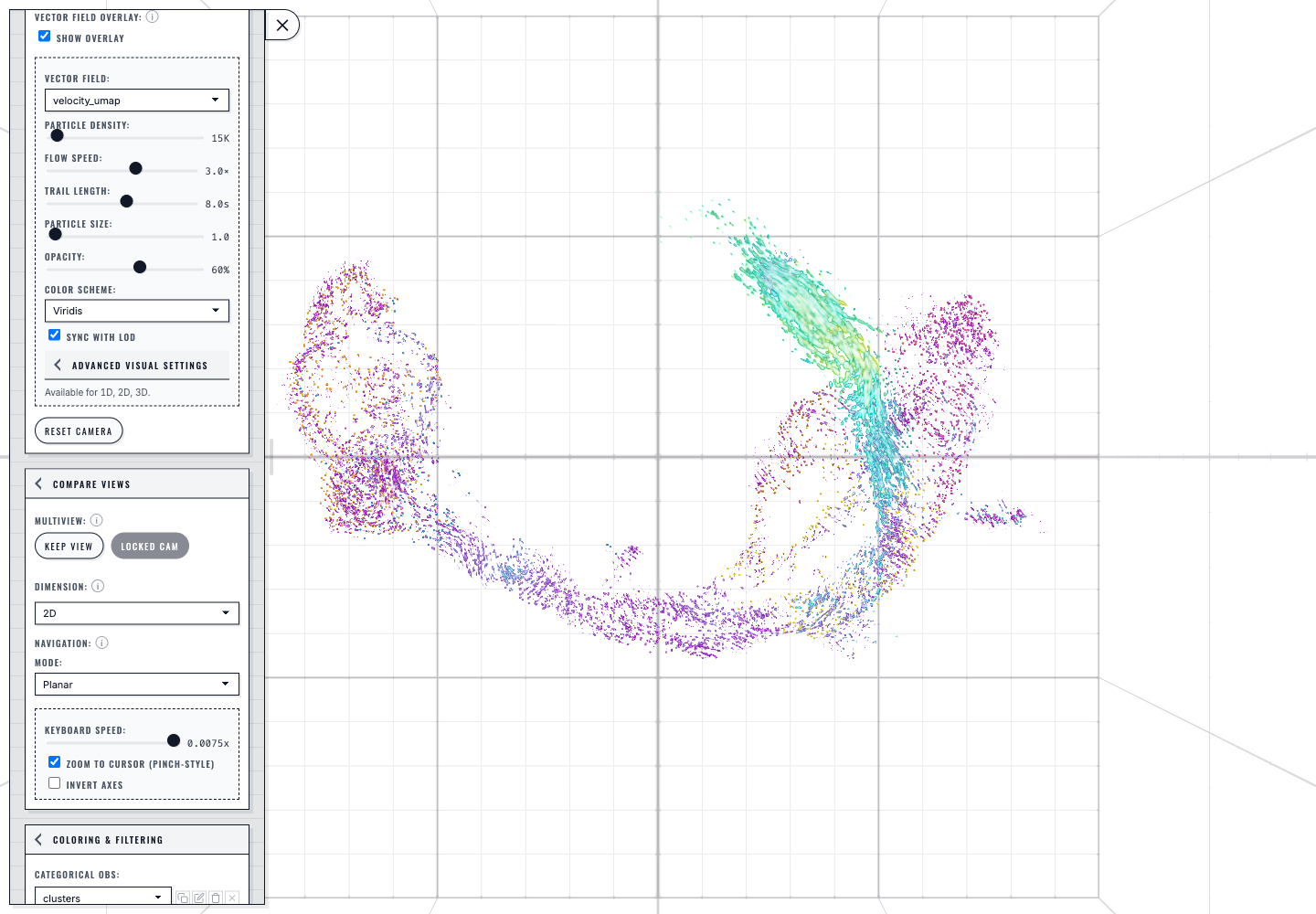
The 2D Planar capture shows velocity_umap with the initial 15K density,
3.0× flow speed, 8.0s lifetime, size 1.0, 60% opacity, Viridis, and
Sync with LOD enabled.#
Advanced visual settings#
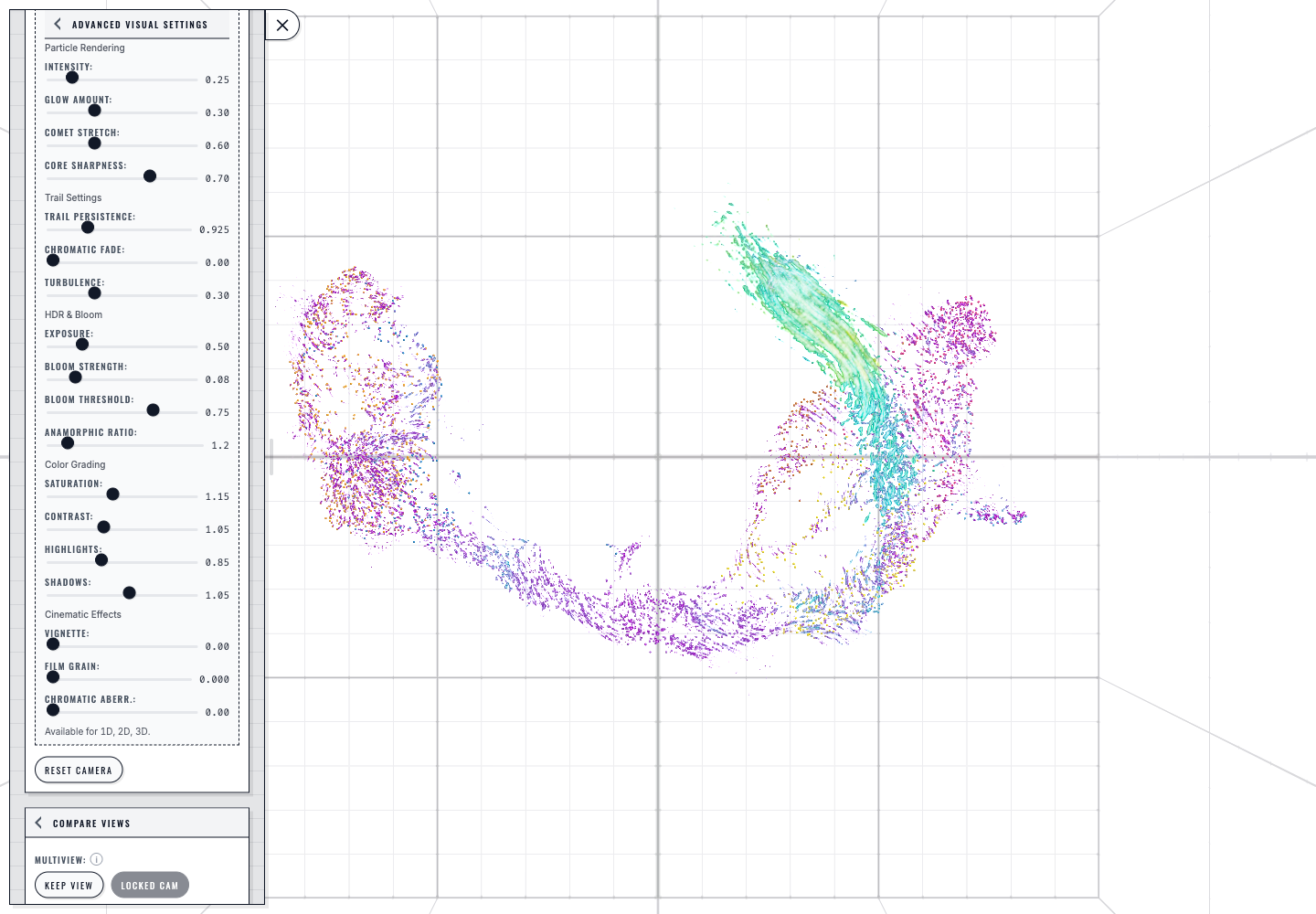
The same real 2D field with Advanced Visual Settings expanded. Particle, trail, HDR/bloom, color-grading, and cinematic controls change the rendering, not the stored per-cell vectors.#
Standard Pancreas velocity#
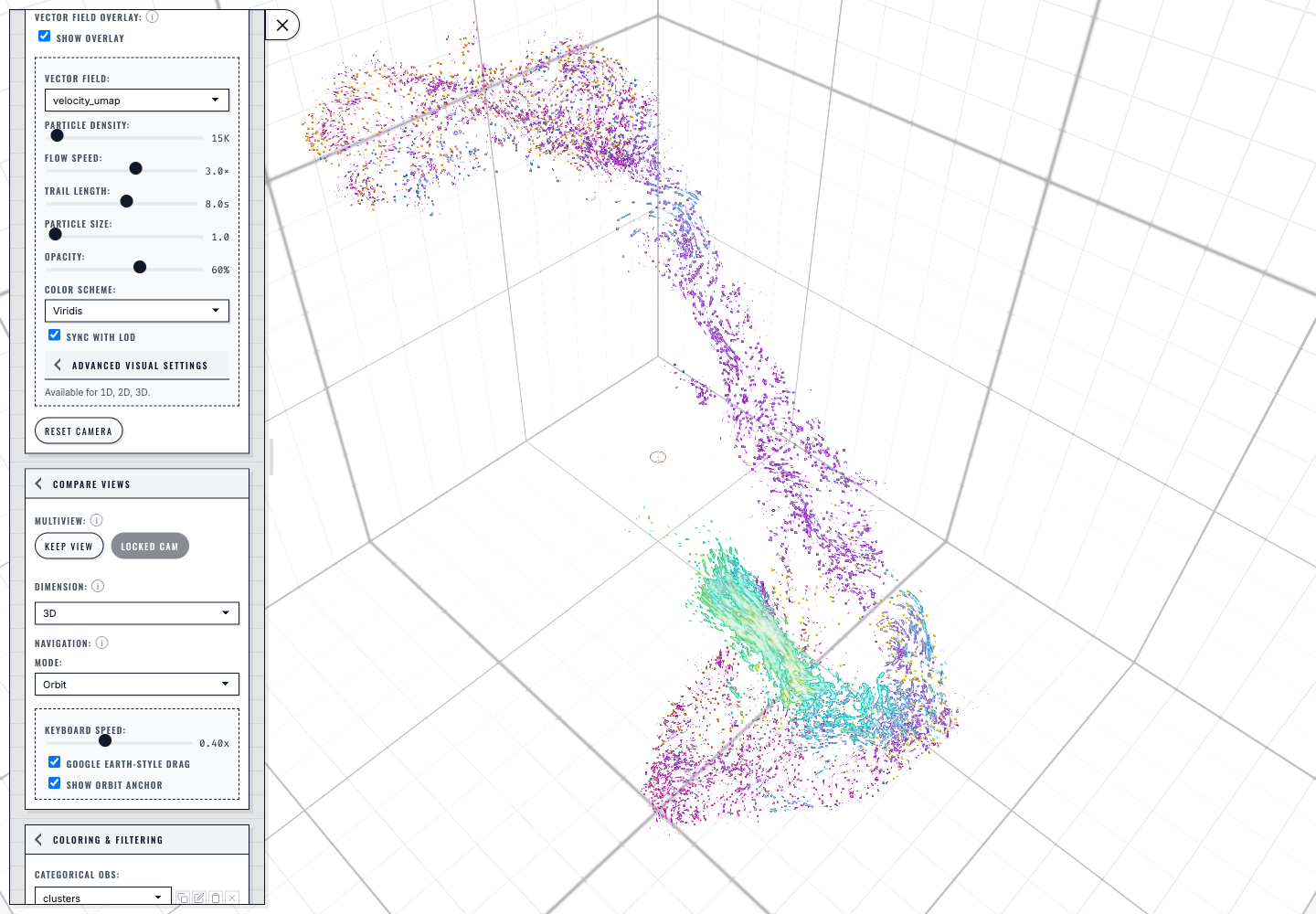
The independent 3D velocity_umap payload in its declared 3D / Orbit
default. Compare it with the 2D capture to inspect projection dependence; do not
interpret either animated trail as a reconstructed single-cell lineage.#
For the sample’s exact biological provenance and data contract, see Standard Pancreas sample dataset. For control semantics, continue with Core particle-flow controls and Advanced parameters (document every setting).