
Verified core-interaction captures#
2D dimension and navigation#
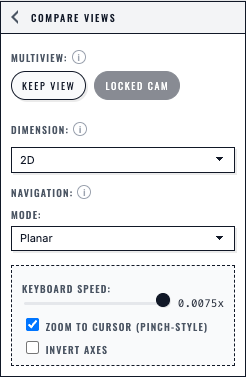
A 2D dataset selects Planar navigation by default. Dimension and navigation remain explicit controls if the user wants another valid configuration.#
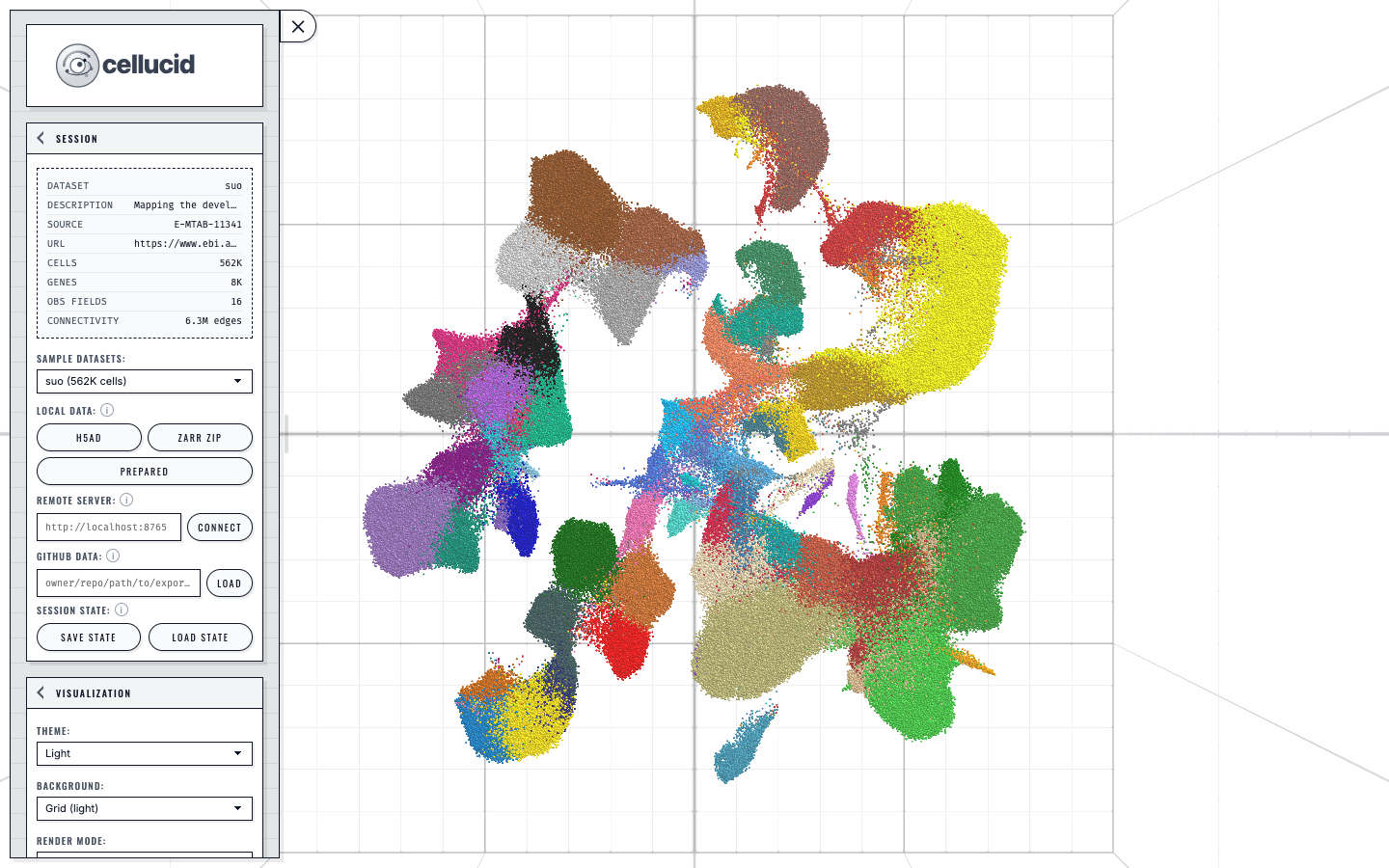
The corresponding 2D view preserves a flat, screen-aligned exploration surface.#
Comparing views#
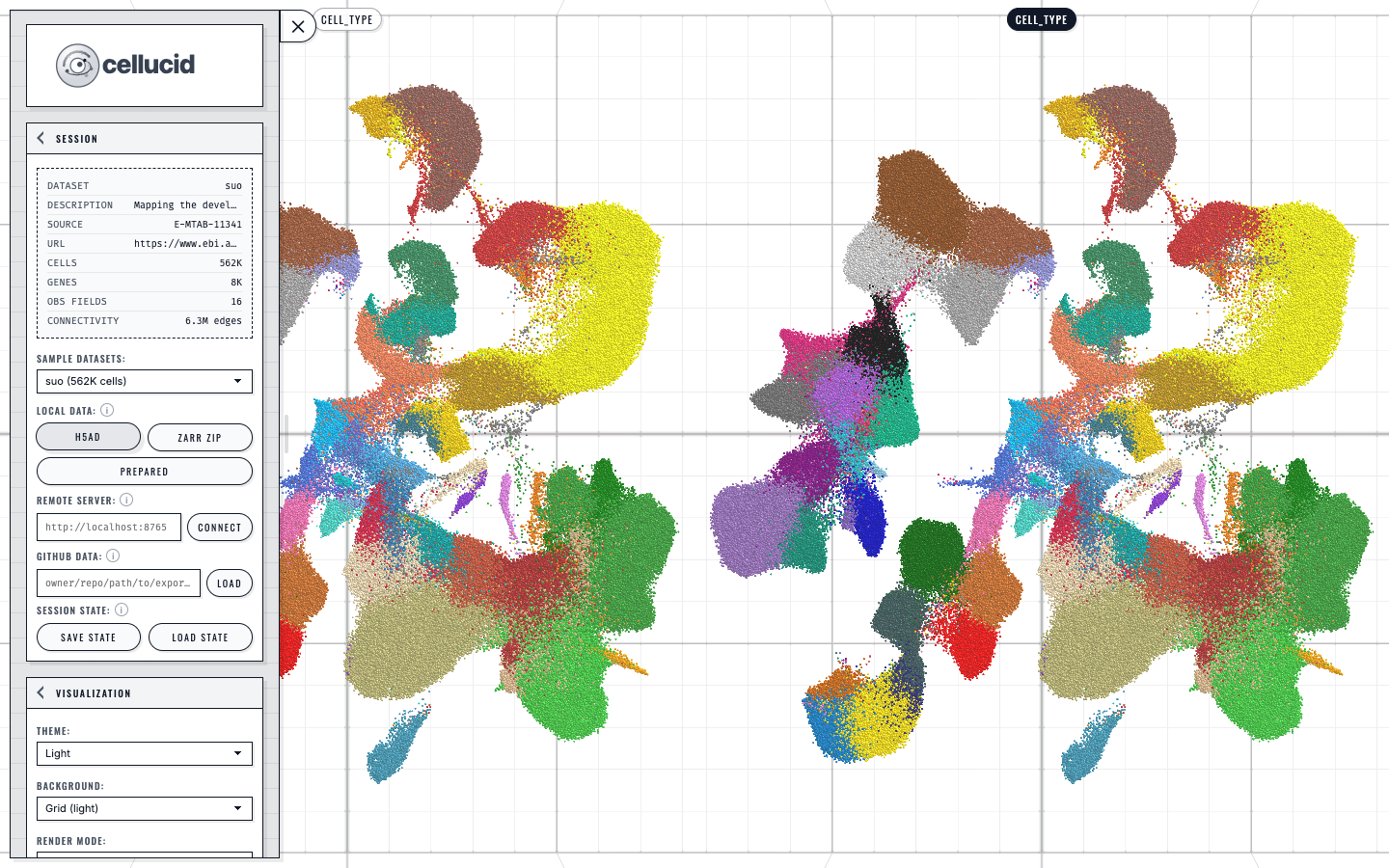
Two kept views support side-by-side comparison while retaining one dataset identity.#
Connectivity edges#
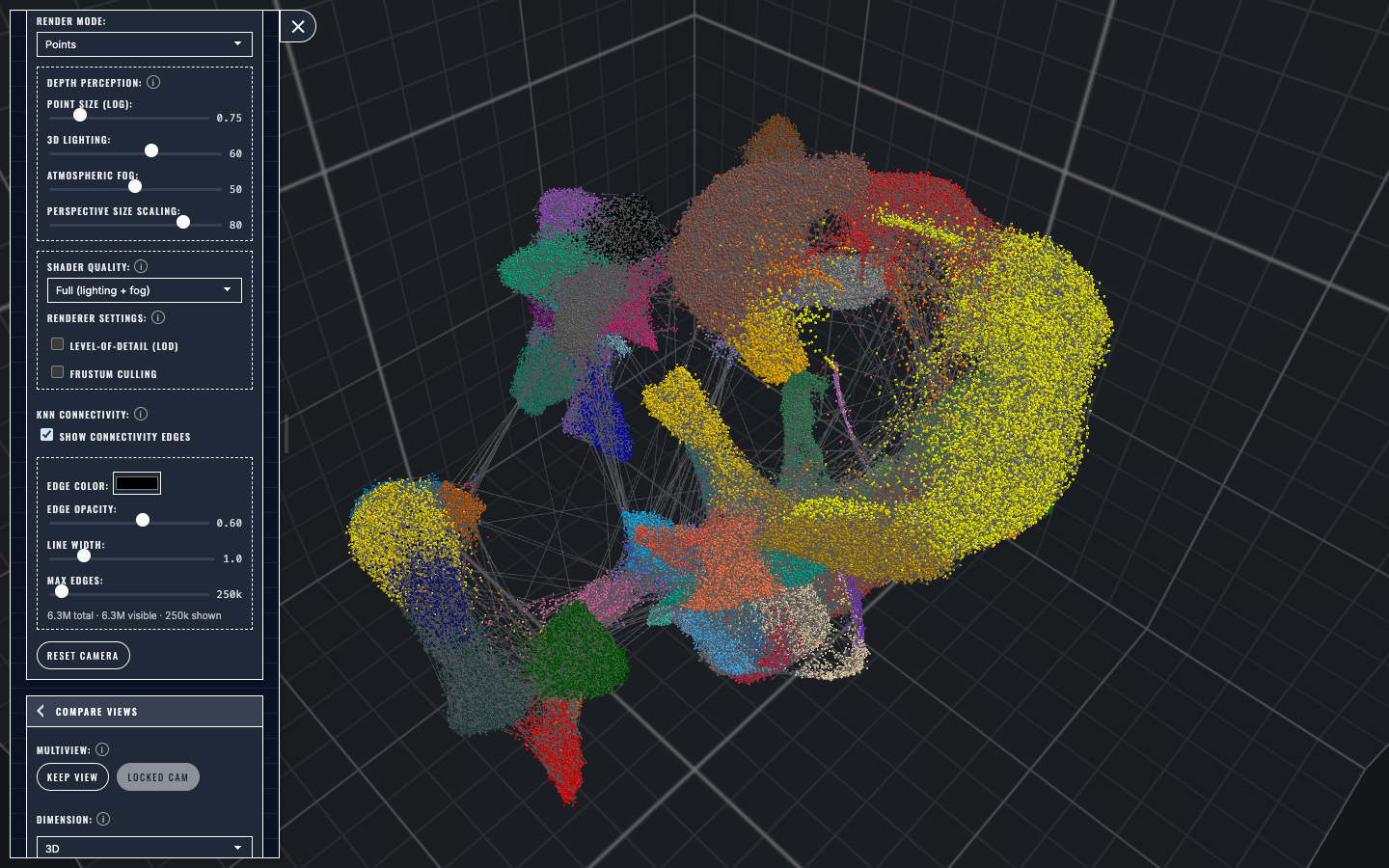
When a connectivity graph is present, the Render controls expose edge color, opacity, line width, and the maximum rendered edge count.#
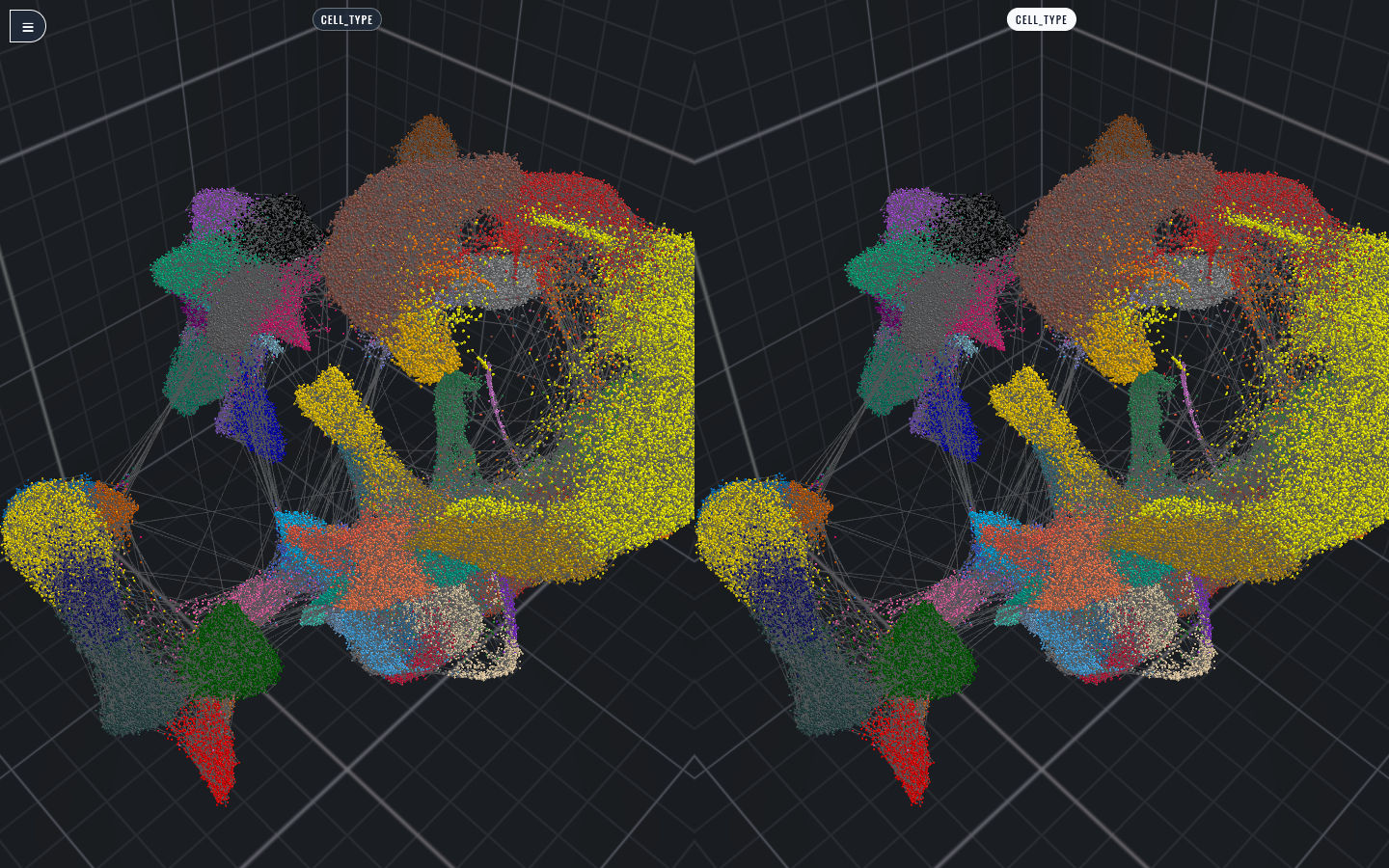
Connectivity rendering remains synchronized across kept views of the dataset.#
Camera paths#
The Camera Path accordion starts collapsed. Opening it does not start camera motion.
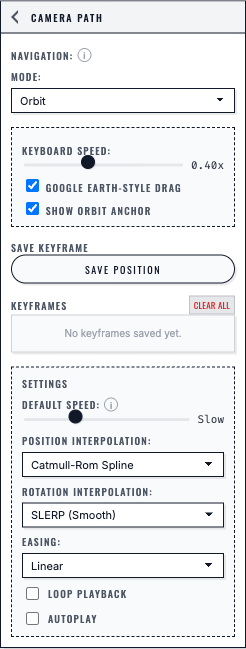
With fewer than two saved positions, the top playback bar is absent and camera motion remains inactive.#
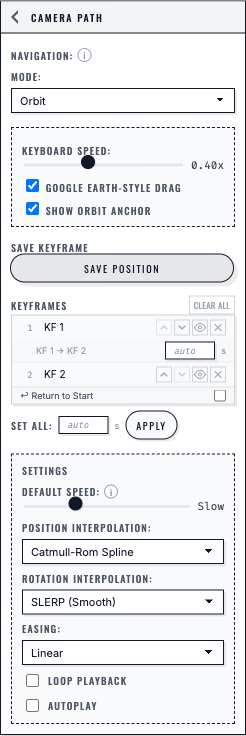
Two valid keyframes expose timing and interpolation settings in the sidebar. Loop playback and Autoplay follow the saved path settings.#
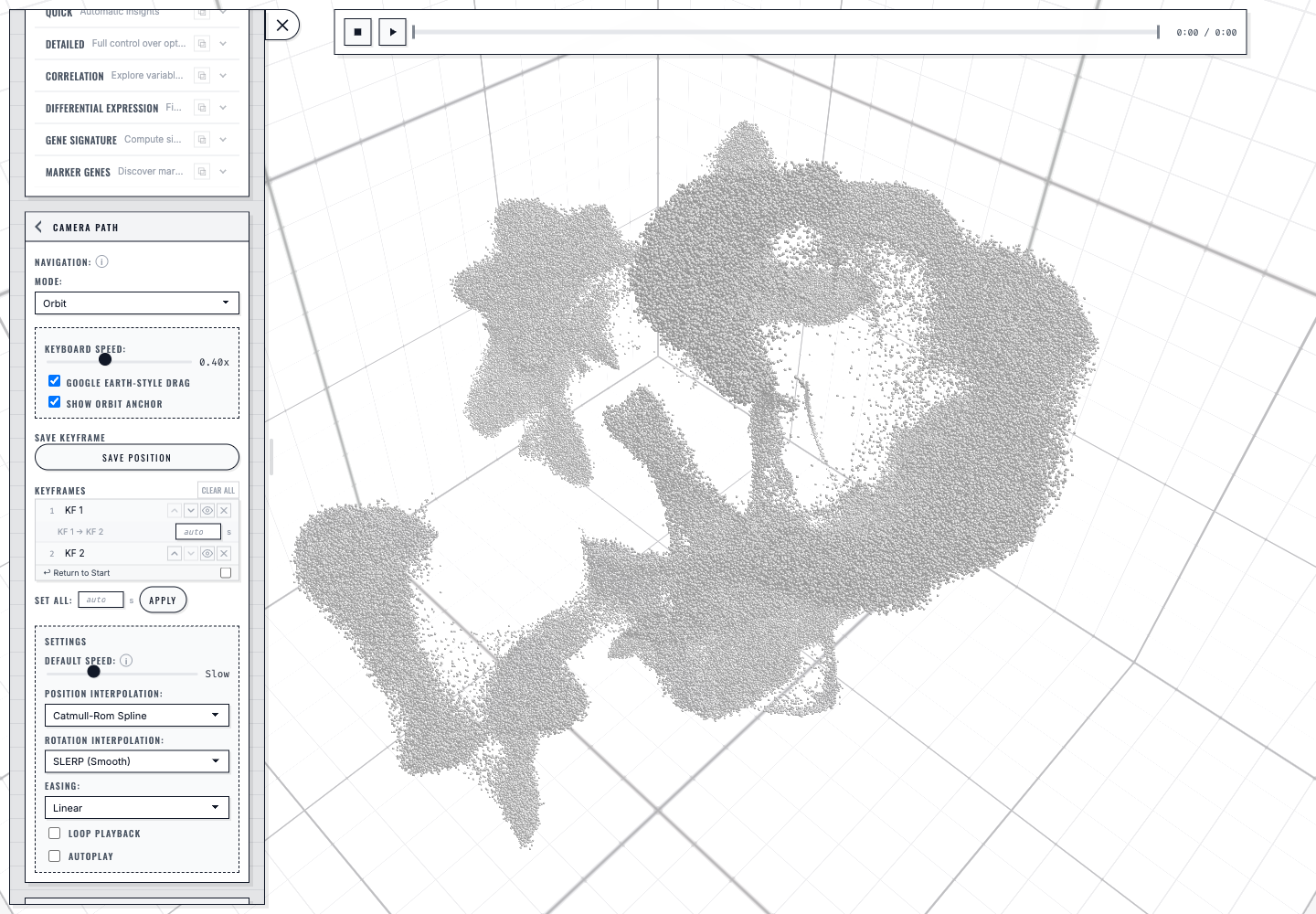
The top transport appears only after two valid keyframes exist. Playback waits for Play unless the user explicitly enables Autoplay.#