
Verified data-loading captures#
These captures were produced through the running web application with a deterministic synthetic AnnData fixture. The acceptance path replaced the prepared dataset with its Zarr ZIP representation, replaced that with the H5AD representation, and then restored the prepared dataset through the visible controls. Each replacement asserted the 120-cell, 6-gene dataset shape, 2D Planar navigation, hidden camera transport, settled notifications, and the absence of browser-console, page, and HTTP errors.
Loading and session controls#
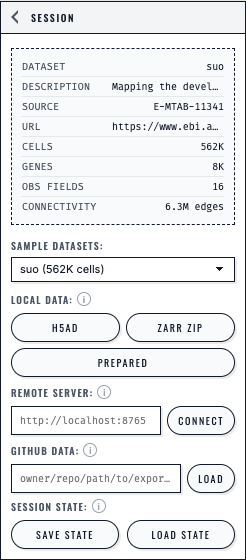
The Session panel presents each loading path separately and keeps Save State and Load State beside the dataset controls.#
Direct H5AD load#
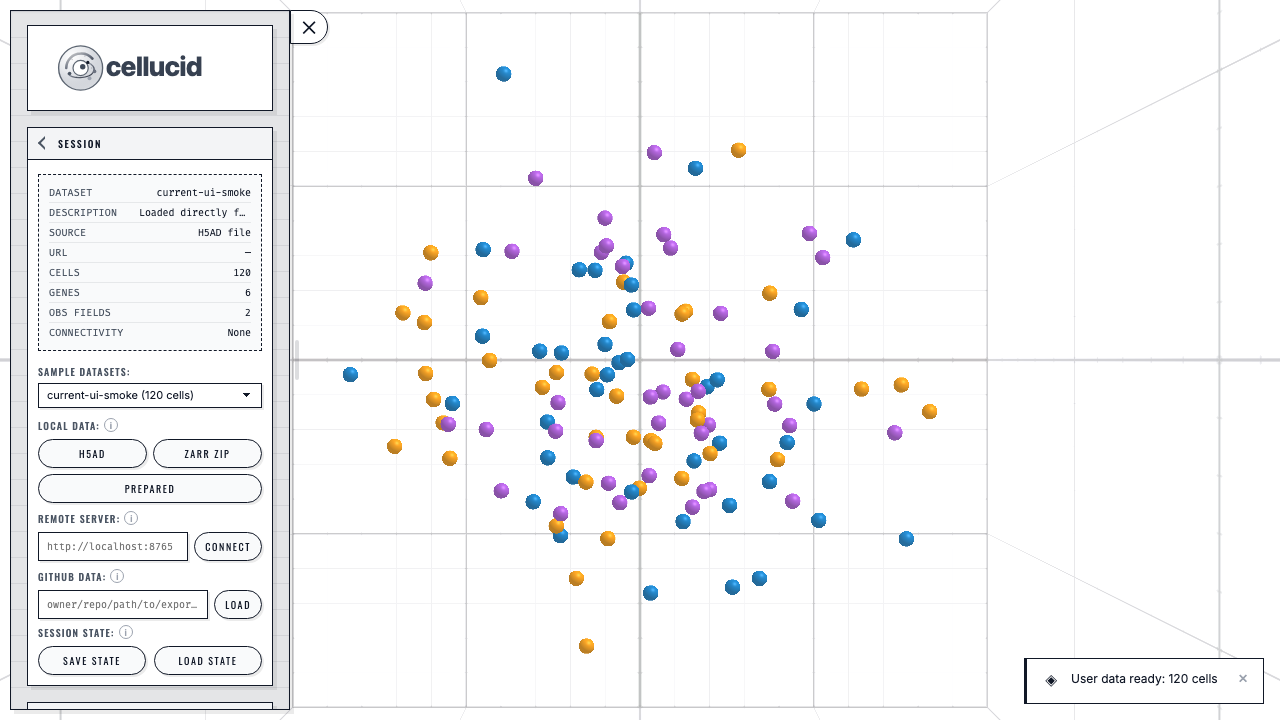
A current-schema H5AD file loaded through the browser picker, with its dataset metadata and available dimensions reported in the Session panel.#
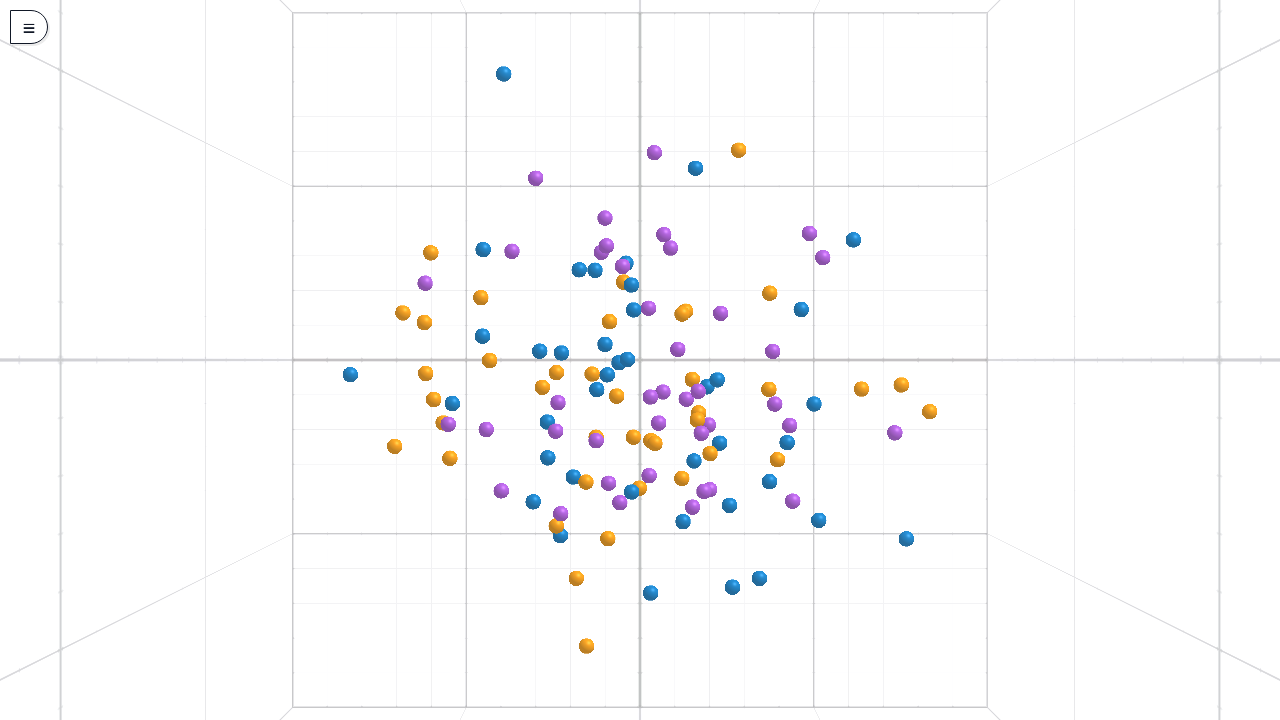
The same H5AD dataset rendered as a 2D interactive view with Planar navigation.#
Direct Zarr ZIP load#
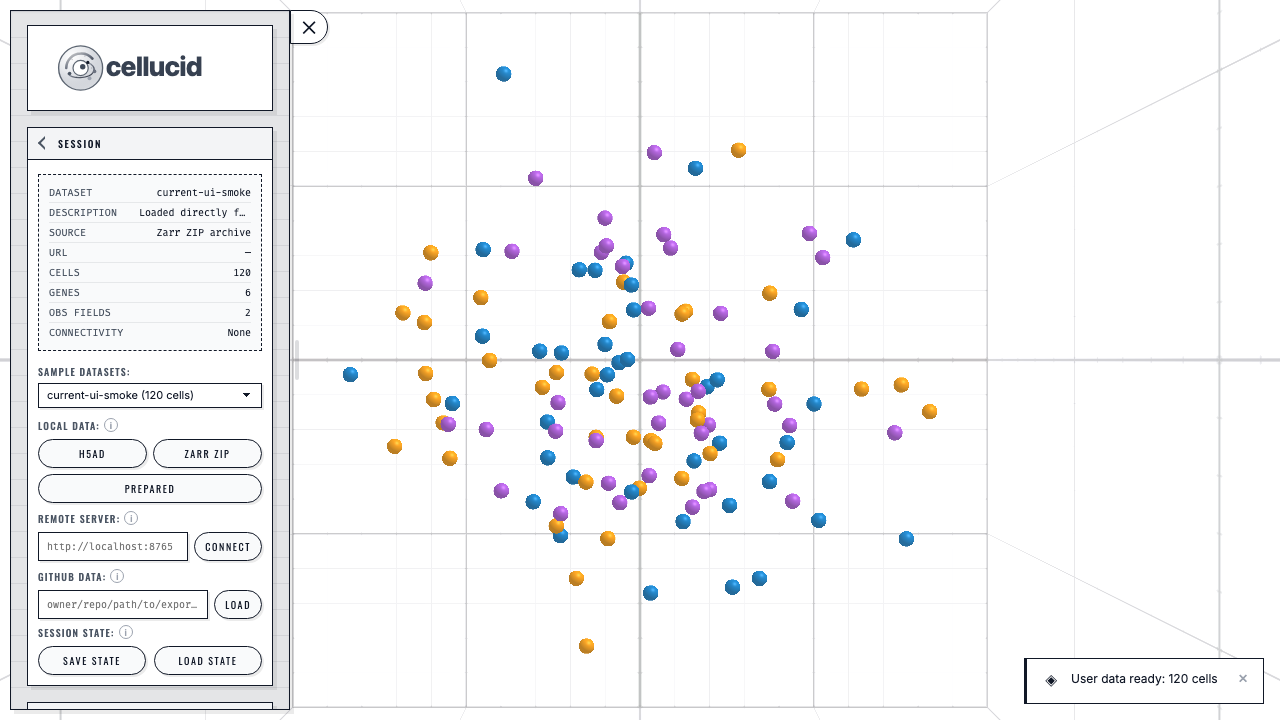
The current-schema Zarr ZIP representation loaded through the browser picker. The Session panel identifies the source as a Zarr ZIP archive, and the visualization uses the archive’s coordinates and categorical metadata.#
Browser-engine checks#
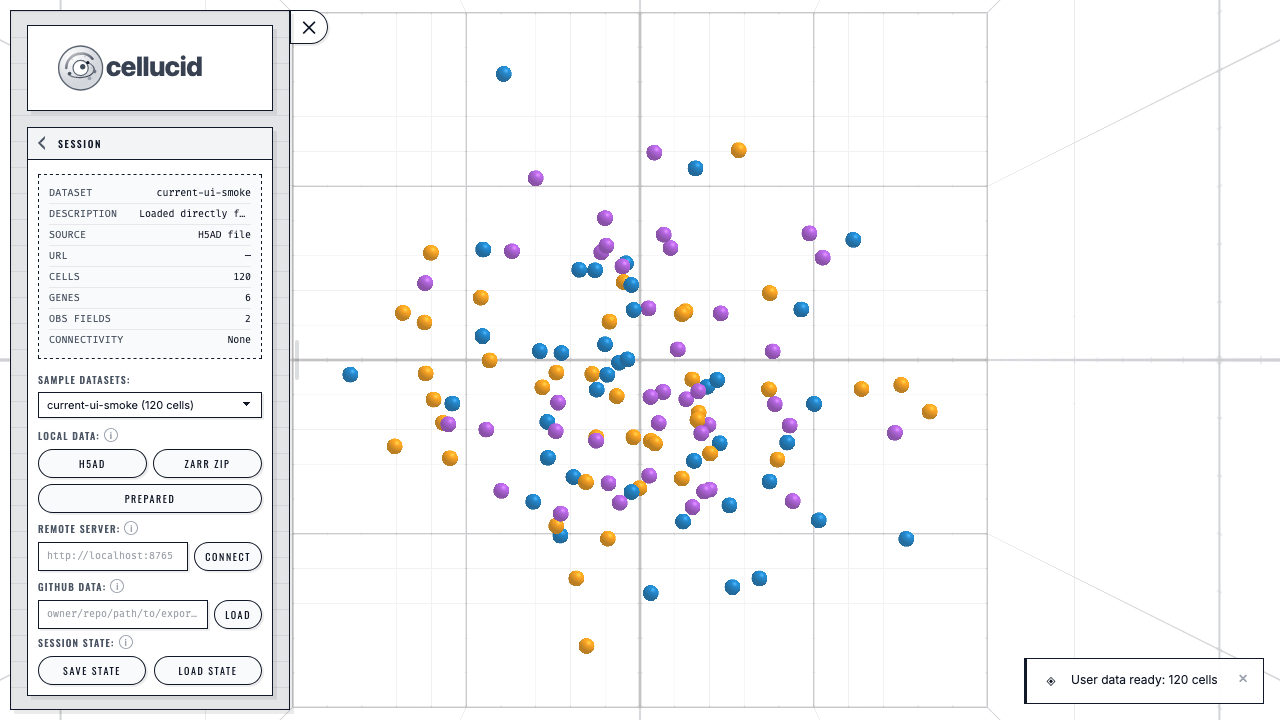
The same direct H5AD replacement path exercised in Firefox on macOS.#
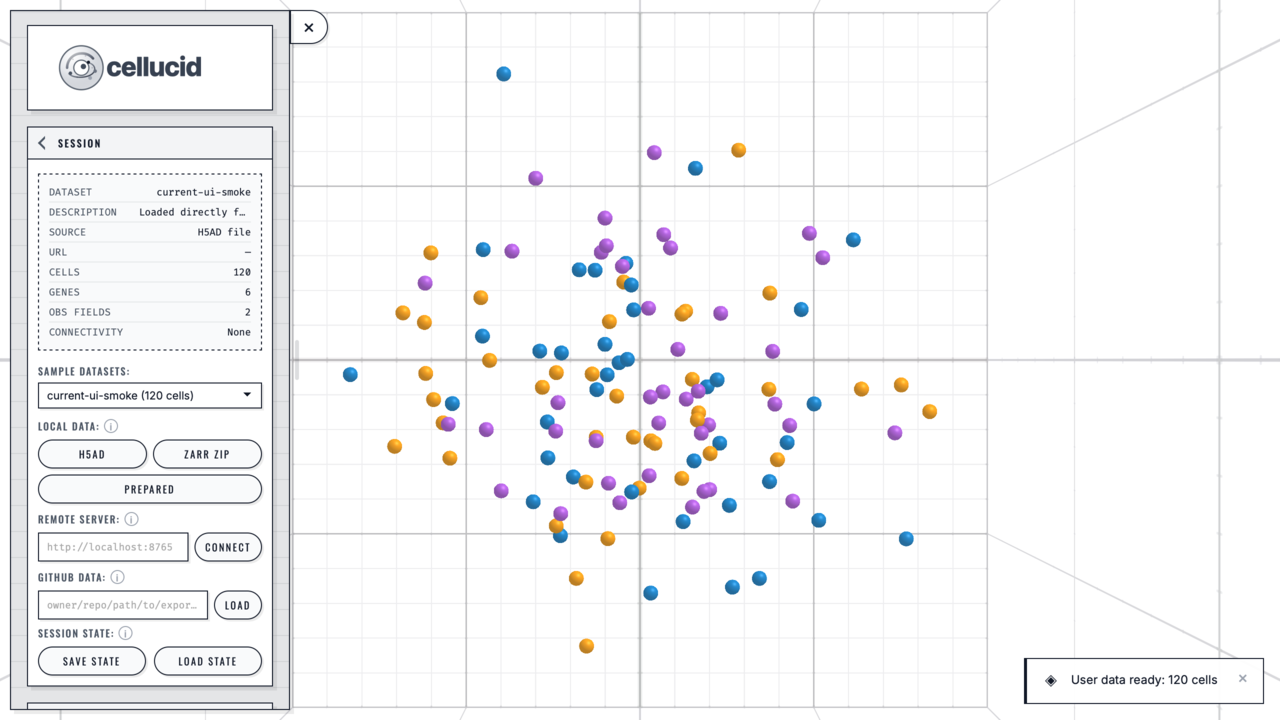
The same direct H5AD replacement path exercised in Playwright WebKit on macOS. WebKit is Safari’s browser engine; the repository’s platform matrix separately runs the supported browser projects on their available CI operating systems.#
Real server and Jupyter evidence#
The synthetic picker captures above isolate browser-file behavior. Two data-backed workflows use the standard Pancreas dataset:
Server Mode (CLI + Python) includes the real CLI startup, prepared-artifact validation, verified web-build establishment, and exact Viewer URL.
Jupyter embedding, hooks, and sessions includes the running Jupyter embed and its exact connection report.