
Server Mode (CLI + Python)#
Server mode opens .h5ad read-only-backed. It also supports .zarr, which is
loaded eagerly and therefore must fit server memory.
You run a small local Python server that:
keeps
.h5admatrix access read-only-backedmaterializes
.zarrinput eagerlyserves only what the viewer needs, on demand
establishes and serves the exact viewer generation on the same origin
Then you open the exact Viewer URL printed by the server:
/?source=remote for prepared data or /?anndata=true for direct AnnData.
This tutorial covers options #6–#11 from the “14 loading options” list.
At A Glance#
Audience
Wet lab / beginner: follow the copy/paste commands; you do not need to write code.
Computational users: focus on lazy loading (
backedmode), memory, and SSH tunnel workflows.
Time
Local server (same machine): ~5–10 minutes
Remote server (SSH tunnel): ~15–30 minutes
Prerequisites
pip install cellucidYour data in one of these forms:
pre-exported folder from
prepare().h5adfile.zarrdirectory
Security Model (Read Once)#
By default, the server binds to
127.0.0.1(localhost).This means only your machine can access it.
If you bind to
0.0.0.0, other machines on your network may be able to access it.Do this only if you understand the risk and you trust your network.
Best practice for remote machines:
Keep the server bound to
127.0.0.1on the remote machine.Use an SSH tunnel so you still access it via
http://localhost:...on your laptop.
This is safer and also avoids browser mixed-content issues.
Fast Path (CLI)#
Start the server:
cellucid serve /path/to/data.h5ad --dataset-name "My dataset" --dataset-id my-dataset
Copy the exact Viewer URL printed by the command. With the default port, direct AnnData prints:
http://127.0.0.1:8765/?anndata=true
Keep the terminal running while you use the viewer.
Stop the server with Ctrl+C.
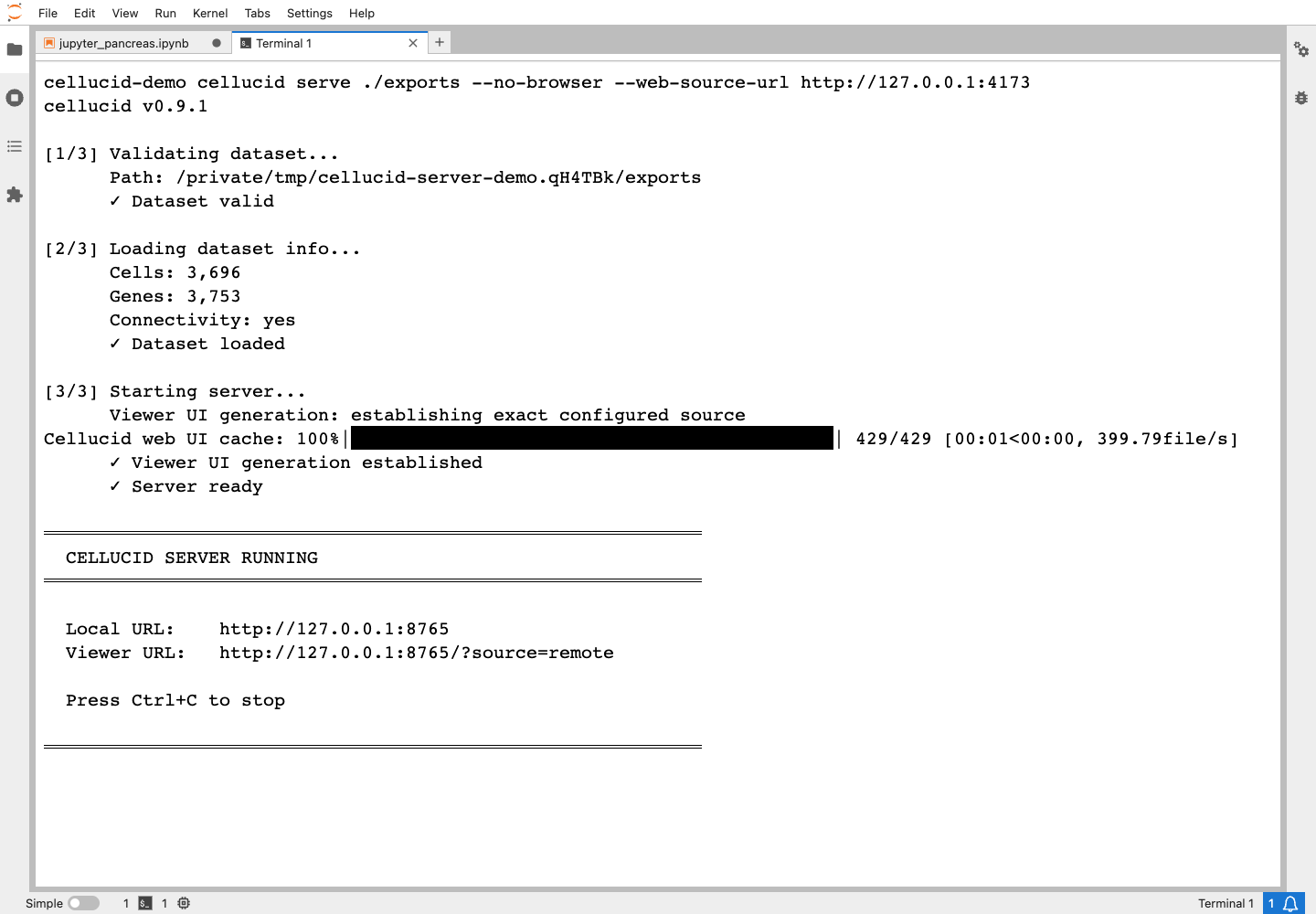
Real prepared-data server startup for a neutral copy of the standard Pancreas
catalog. The command validates 3,696 cells, 3,753 genes, and connectivity,
establishes the exact 429-file web build, and prints both server URLs. Copy the
printed Viewer URL rather than reconstructing it. For this documentation
capture, --web-source-url http://127.0.0.1:4173 pins the web app from the same
checked-out repository; released use follows the standard command above.#
Option #6 — Serve a Pre-exported Folder (Best Performance)#
Use this if you already ran prepare().
cellucid serve /path/to/export_dir
Notes:
This is usually the fastest experience.
The path may be one complete prepared dataset or an exports root containing
datasets.jsonand multiple complete dataset directories.The CLI detects only a complete current export: valid
dataset_identity.json,obs_manifest.json, at least one non-empty exact points artifact, and every manifest-declared artifact.
Option #7/#8 — Serve .h5ad or .zarr Directly (Auto-detected)#
# h5ad
cellucid serve /path/to/data.h5ad --dataset-name "My dataset" --dataset-id my-dataset

# zarr (directory)
cellucid serve /path/to/data.zarr --dataset-name "My dataset" --dataset-id my-dataset
Why this is good:
.h5aduses read-only backed access instead of loading the full matrix..zarris loaded eagerly, with gene values requested by the browser on demand.
Vector fields (velocity/drift) in server mode#
Server mode supports the vector field / velocity overlay (if your dataset includes vectors).
Where vectors come from depends on your data:
Pre-exported folders: vectors live in
vectors/, anddataset_identity.jsoncontains avector_fieldsblock.AnnData (
.h5ad/.zarr): vectors are discovered fromobsmkeys likevelocity_umap_2d,velocity_umap_3d,T_fwd_umap_2d, etc.
Quick verification (high signal):
Open
http://127.0.0.1:8765/dataset_identity.jsonand search forvector_fields.
If the overlay toggle is disabled or the dropdown is empty, it’s usually:
naming mismatch, or
dimension mismatch (e.g. you only have 2D vectors but you’re viewing 3D).
See:
CLI Options (What They Mean)#
Run this anytime:
cellucid serve --help
Key flags:
--port, -p:Change port if
8765is in use.--port 0asks the operating system for an available port; copy the URL Cellucid prints.
--host, -H:Default is
127.0.0.1(local only).Use
0.0.0.0only if you need LAN access.
--no-browser:Don’t auto-open a browser tab.
--latent-key:Explicit AnnData
obsmkey used as latent space for categorical centroid outlier calculations.
--dataset-nameand--dataset-id:Required for direct H5AD and Zarr input; invalid for prepared input.
--vector-field-default:Required only when direct AnnData exposes multiple vector-field IDs and you need to choose the exact default.
--quiet, -qand--verbose, -v:Mutually exclusive output levels.
--no-web-ui:Serve scientific endpoints without establishing or serving the web application. Pair it with
--no-browser; this is an API-consumer mode, not a browser-viewing workflow.
--web-source-urland--web-cache-dir:Advanced controls for establishing the exact verified web build. Leave them at their defaults unless you operate an audited Cellucid web origin and cache.
Option #9/#10/#11 — Python API Server Mode#
You can start the same blocking servers from Python (useful for scripts).
serve(export_dir)serves a pre-exported folder.serve_anndata(data, dataset_name=..., dataset_id=...)serves.h5ad,.zarr, or an in-memoryAnnData.
from cellucid import serve

serve(
    "/path/to/export_dir",
    port=8765,
    host="127.0.0.1",
    open_browser=True,
)
from cellucid import serve_anndata

serve_anndata(
    "/path/to/data.h5ad",
    port=8765,
    host="127.0.0.1",
    open_browser=True,
    dataset_name="My dataset",
    dataset_id="my-dataset",
)
Both convenience calls block until you interrupt them. Use the class APIs when another part of your program must keep control of the process.
Stopping the server from Python#
If you use the class-based API (advanced), you can stop the server programmatically:
from cellucid.anndata_server import AnnDataServer

server = AnnDataServer(
    "data.h5ad",
    open_browser=False,
    dataset_name="My study",
    dataset_id="my-study-v1",
)
server.start_background()

# ... interact in the browser ...

server.stop()
For most users, Ctrl+C in the terminal is simplest.
Remote Server Access (SSH Tunnel Workflow)#
This is the recommended way to use Cellucid when your data lives on a remote machine (HPC, lab server).
Step 1 — Start the server on the remote machine#
On the remote machine:
cellucid serve /path/to/data.h5ad \
  --no-browser \
  --dataset-name "My study" \
  --dataset-id my-study-v1
Keep it bound to 127.0.0.1 (default).
Step 2 — Create an SSH tunnel from your laptop#
On your laptop:
ssh -L 8765:localhost:8765 user@remote-host
Leave that SSH session open.
Step 3 — Open Cellucid locally#
http://127.0.0.1:8765/?anndata=true
Use the exact path printed by the remote command: /?anndata=true for direct
H5AD/Zarr or /?source=remote for a prepared dataset or catalog.
Why this works well:
Your browser talks only to
localhost.You avoid exposing the server to the public internet.
You avoid HTTPS→HTTP mixed-content blocking because the viewer UI and data API are served from the same origin.
Edge Cases#
Port already in use:
The server reports the bind failure for the requested port.
Choose another port explicitly or use
--port 0, then copy the printed URL.
Windows firewall prompt:
If you allow public network access accidentally, other machines may reach your server.
Large in-memory AnnData or Zarr input:
Can cause high RAM use.
Mixed content:
Opening
https://www.cellucid.com?remote=http://127.0.0.1:<port>is blocked by browsers (HTTPS page fetching HTTP).Always open the exact local Viewer URL printed by the server (
/?source=remotefor prepared data or/?anndata=truefor direct AnnData), which serves the verified UI generation.Prefer an SSH tunnel when the kernel/server is remote.
Vector fields only exist in one dimension:
If you have
*_umap_2dvectors but no*_umap_3d, the overlay dropdown will be empty in 3D.Switch to 2D, or provide the missing dimension.
Troubleshooting (Massive)#
Symptom: “Port already in use”#
Likely causes
Another service is using that port.
How to confirm
Try a different port:
--port 9000.
Fix
Run:
cellucid serve /path/to/data.h5ad --dataset-name "My dataset" --dataset-id my-dataset --port 9000
Then copy the exact printed Viewer URL. For this command it should be:
http://127.0.0.1:9000/?anndata=true
Symptom: “Cellucid says it can’t connect to the remote server”#
Likely causes
You typed the wrong URL (port mismatch).
The server is bound to
127.0.0.1but you are trying to access it from another machine.Your browser blocked mixed-content requests.
How to confirm
Open the server URL directly in your browser:
http://127.0.0.1:8765/_cellucid/health
(If the server is running locally, you should get a small JSON response.)
For an exports root, inspect the validated catalog separately at
http://127.0.0.1:8765/_cellucid/datasets.
Fix
Use an SSH tunnel for remote machines.
Ensure the server is actually running and the URL matches.
Symptom: “It connects, but genes are missing / gene search returns nothing”#
Likely causes
Your AnnData has no expression matrix (
adata.Xempty) or novar.Your gene IDs are stored under a different
varcolumn.
How to confirm
In Python:
print(adata.X is None),print(adata.var.head()).
Fix
Use
show_anndata(..., gene_id_column="...")in Jupyter.Or export via
prepare(var_gene_id_column="...").
Symptom: “Vector field overlay toggle is disabled / no fields appear”#
Likely causes (ordered)
The dataset contains no vectors (common).
Vector fields exist, but are not named using the expected convention (
*_umap_2d,*_umap_3d).Dimension mismatch: vectors exist for 2D but you’re viewing 3D (or vice versa).
How to confirm
Open
http://127.0.0.1:8765/dataset_identity.jsonand check for avector_fieldsblock.If using AnnData, list
obsmkeys and look forvelocity_umap_2d-style entries.
Fix
Rename or regenerate vector fields using the exact keys documented in What vector fields are (user-facing).
Switch the viewer to the dimension that has vectors.
For overlay UI behavior and deeper debugging, see:
Symptom: “It’s extremely slow”#
Likely causes
Large dataset + dense X
Running over a high-latency SSH tunnel
Fix
Prefer pre-exported data for best performance.
If using SSH, run the server close to the data (on the same machine as the file) and tunnel to it.
Next Steps#
Dataset identity (sessions/sharing): Dataset identity (why it matters)
Full troubleshooting matrix: Troubleshooting (data loading)
Want notebook embedding + programmatic control? → Jupyter Integration (Notebook Embedding)
Want browser-only loading without any server? → Browser File Picker (No Python Setup)
Want to publish a static public catalog instead? → Publish a Custom Dataset Repository